
Editable Classroom Orientation PPT Free Download
The first day of classes is a delicate balancing act. You want students to feel welcomed, informed, and a little excited — all while covering ground rules, schedules, and expectations before the inevitable chaos of a new school year takes over. The right classroom orientation PowerPoint presentation can make that difference between a smooth start and a scattered one.
Whether you’re a seasoned DepEd teacher or preparing for your very first class, we’ve put together the most comprehensive resource on free, fully editable Classroom Orientation PPT Free download available right now — complete with a free download you can use starting today.
Table of Contents
What Is a Classroom Orientation PPT?
A Classroom Orientation PPT (PowerPoint Presentation) is a ready-made or customized slide deck used by teachers at the beginning of a school year or semester to formally introduce the class environment. It typically serves as a visual guide during the orientation session — a structured, engaging way to cover everything parents and students need to know before the first lesson begins.
In the Philippine context, classroom orientation is a mandated part of the opening-of-classes protocol under DepEd guidelines. Teachers are expected to conduct this session to set academic and behavioral expectations from day one. A well-designed PPT transforms what could be a dry, one-sided lecture into an interactive, memorable experience.
Key Purposes of a Classroom Orientation Presentation
- Introduce the teacher’s background, teaching philosophy, and communication style
- Outline classroom rules, behavior expectations, and school-wide policies
- Share the class schedule, grading system, and academic calendar
- Communicate contact information and channels for parent-teacher communication
- Highlight available academic support resources and extracurricular opportunities
- Set a positive, welcoming tone that establishes classroom culture from day one
Why PowerPoint Is the Best Format for Editable Classroom Orientation PPT Free Download
You might wonder — why use a PPT at all? Can’t you just have a conversation? Technically yes, but research in education consistently shows that visual learning tools significantly improve retention and engagement, particularly in mixed-age and large classroom settings.
Here’s why PowerPoint remains the gold standard for classroom orientations in Philippine schools:
- Universal compatibility — Every school computer runs MS Office. No app downloads, no browser dependency, no formatting surprises.
- Fully editable — Change text, colors, images, and layout in minutes. Your orientation doesn’t have to look like everyone else’s.
- Works offline — Perfect for schools with inconsistent internet connections. Just open and present.
- Professional look without design skills — A well-crafted template handles the design; you just fill in your details.
- Easy to print or share as PDF — Parents who miss the session can receive a PDF version to review at home.
- Supports animations and transitions — Keep students visually engaged rather than staring at a static board.
Did You Know?
Studies in visual communication show that people retain up to65% of informationwhen it’s paired with relevant visuals, compared to just 10% from text alone. A thoughtfully designed orientation slide deck can dramatically improve how much students and parents actually remember from that first session.
Free Download: Editable Classroom Orientation PPT Free Download
Great news — you can download our free, fully editable Classroom Orientation PPT templates directly from this page. We’ve prepared multiple versions to suit different grade levels and classroom contexts, including options in both English and Filipino (Tagalog).
All templates are available in .PPTX format, compatible with Microsoft PowerPoint 2016 and later, as well as Google Slides and LibreOffice Impress. Every element — text, colors, fonts, images, and layout — is 100% editable.
Share to your friends!
What Slides Are Included in the Template
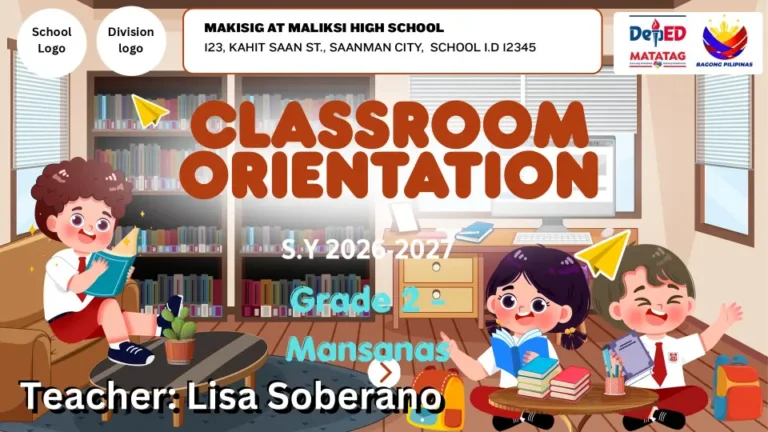
Our editable Classroom Orientation PPT is designed to cover every essential topic from start to finish. Here’s a breakdown of what you’ll find inside the standard 20-slide template:
1 Title / Cover Slide
School name, class section, SY 2026–2027, teacher name
2 Teacher Introduction
Photo, name, educational background, teaching experience
3 Welcome Message
Warm opening note to students and parents
4 Vision, Mission & Core Values
DepEd VMCV for alignment with national standards
5 Class Information
Grade level, section, room number, enrollment details
6–7 Classroom Rules
Behavior expectations, dos and don’ts, consequences
8 Daily Class Schedule
Time-blocked schedule with subjects and breaks
9 Attendance Policy
Absences, tardiness, excuse letters, makeup work
10 Grading System
Components, weights, transmutation guide
11 School Policies
Uniform, gadget use, campus rules summary
12 Academic Calendar
Key dates, holidays, quarter exams, activities
13 Brigada Eskwela Info
Community participation reminders
14 Communication Channels
Messenger group, email, office hours, parent portal
15 Learner Support Services
Guidance office, health services, remedial programs
16–18 Blank / Custom Slides
Pre-formatted blanks for your additional content
19 Q&A Slide
Open floor for parent and student questions
20 Thank You / Closing
Closing message with contact details reminder


Step-by-Step: How to Customize Your Template
One of the most common worries we hear from teachers: “I’m not good at computers. Can I really edit this?” Absolutely. Here’s exactly how to personalize your Classroom Orientation PPT in under 30 minutes.
Step 1: Open the File in PowerPoint
Once downloaded, right-click the PPTX file and select Open with → Microsoft PowerPoint. If you don’t have PowerPoint installed, upload the file to your Google Drive and open with Google Slides — all slides render correctly.
Step 2: Edit Text Boxes Directly
Click on any text area and start typing. All placeholder text (e.g., “[Teacher Name Here]”, “[School Name]”) is clearly labeled. Simply replace the bracketed placeholders with your actual information.
Step 3: Replace the Teacher Photo
On Slide 2, right-click the placeholder image → Change Picture → From This Device. Select your photo. PowerPoint will automatically fit it to the frame. For best results, use a square or portrait photo with a clean background.
Step 4: Update the Class Schedule Table
Slide 8 contains an editable table. Click any cell to modify the time slots and subject names. You can also add or remove rows by right-clicking a row and selecting Insert/Delete.
Step 5: Adjust Colors to Match Your School’s Palette
Go to Design → Variants → Colors to apply a color theme. Alternatively, select any shape, click Shape Format → Shape Fill, and pick a custom color. This is a great way to align the presentation with your school’s official colors.
Step 6: Save a Backup Before Finalizing
Before your final session, save a copy under a new file name (e.g., ClassOrientation_Grade7_SectionMabini_2025.pptx). This protects your work and lets you reuse the blank template for future classes.
Design Tip
Keep fonts consistent throughout. The default templates usetwo fonts max— a display font for headings and a clean sans-serif for body text. Changing too many fonts at once makes slides look unprofessional. Stick to what’s already set unless you have a clear reason to change.
Disclaimer:
Some educational materials may be inspired by or aligned with DepEd curriculum standards.
However:
All materials uploaded or created are intended to support teachers and students.
If any copyrighted content is unintentionally shared, please contact us here depedlibre@gmail.com immediately for removal or proper attribution.
We respect intellectual property rights and respond promptly to valid copyright concerns.
Pro Tips for a Winning Classroom Orientation
A great PPT is only half the battle. The presentation of the presentation matters just as much. Here are field-tested tips from experienced Filipino teachers on how to make your classroom orientation truly memorable.
Keep It Under 45 Minutes
Parents and students lose attention quickly. Aim for 30–40 minutes max, and leave 10 minutes for Q&A. Less is more.
Start With a Personal Story
Don’t jump straight into rules. Share a brief personal anecdote — why you became a teacher, a memorable student moment. It humanizes you instantly.
Focus on the “Why” Behind Rules
Instead of just listing rules, briefly explain why each one exists. Students who understand the purpose are far more likely to follow them.
Share a Digital Copy
Export your final slides as a PDF and share it in your class Messenger group or parent chat. Parents who couldn’t attend will appreciate it.
Use Visuals Over Bullet Points
Swap long text bullets for icons, images, and short phrases. Slides should complement what you’re saying — not replace it.
Leave Room for Co-Creation
Consider letting students suggest one or two classroom rules themselves. Ownership of the rules dramatically improves buy-in throughout the year.
What to Do Before the Orientation Session
- Rehearse your talking points for each slide at least once
- Test the projector or screen connection 15 minutes before students arrive
- Prepare printed sign-in sheets for parents and guardians
- Have a printed backup of key slides in case of technical failure
- Set up a parent information corner (confirmation slips, contact cards)
Frequently Asked Questions
Are these templates really free? No hidden charges?
Yes, completely free. No subscription, no sign-up, no watermark. These templates are shared freely for the benefit of Filipino educators. Download, customize, and use them as many times as you need for educational purposes.
Can I use these for Google Slides instead of PowerPoint?
Absolutely. Upload the downloaded PPTX file to your Google Drive, right-click it, and select “Open with Google Slides.” All text, layouts, and designs transfer correctly. You can then edit and present directly from Google Slides.
Which version is best for DepEd teachers?
For most DepEd public school teachers, the Bilingual Version (English + Filipino) is the most practical choice, as it serves both students and parents who may be more comfortable with Filipino. The Standard English version works well for private schools and higher grade levels.
Can I add my school’s logo to the slides?
Yes. In PowerPoint, go to Insert → Pictures → This Device to add your school logo to any slide. For a consistent look, add it to the Slide Master (View → Slide Master) so it appears on all slides automatically.
Is it okay to share these templates with other teachers at my school?
Yes. These templates are freely shareable among educators for non-commercial educational use. We’d love for them to benefit as many teachers as possible. Simply share the download link from this page.
What if I need a template for a specific grade level (e.g., Kinder, Grade 1, High School)?
The templates are designed to be grade-flexible — the content placeholders are intentionally generic so you can tailor them to Kindergarten through Senior High School. Simply adjust the language complexity and rules to match your learners’ age group.
Don’t forget to Follow our Facebook page for more free learning materials!
Latest News!
Download more files below!
- Adviser Files
- Aral Program Materials
- Brigada Eskwela Files
- COT Lesson Plans
- Daily Lesson Log (DLL)
- Deped Files
- Deped Modules
- Graduation Program/Files
- Homeroom Guidance Modules
- Matatag Curriculum Guide
- Matatag Lesson Exemplars
- National Learning Camp Files
- NAT Reviewer (New)
- Periodical Test (All Subjects)
- PowerPoint Game Templates
- Summative Tests/ Perfor Task
- Teacher Loans


Recent Posts
Download (by grade level)!
Grade 9 Files
Grade 10 Files
Grade 11 Files
Grade 12 Files